Appearance
Create a New Simulation
- If you don't have a new / fresh simulation tab, click the + button in the top left and select
New Empty Simulation. This isn't typically needed if this is your first run because you will have a new blank simulation visible already.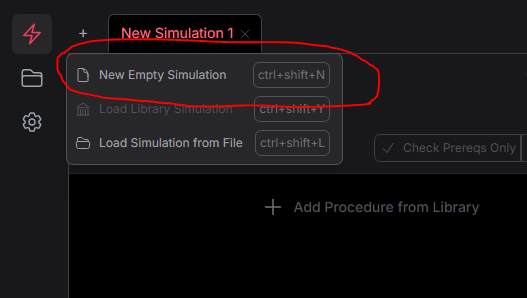
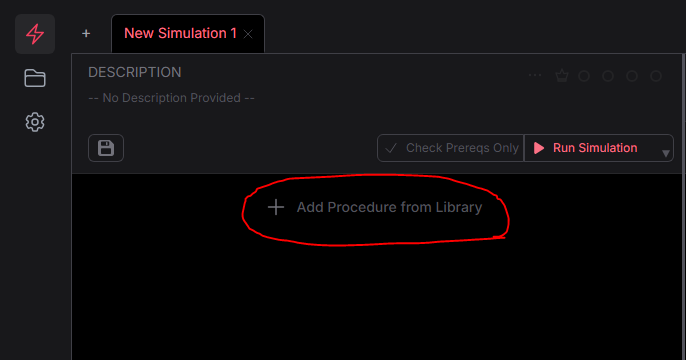
- Click the button to add a procedure to your new simulation
- For your first run and if you're on Windows, I recommend typing
benigninto the procedure search field and hitting enter.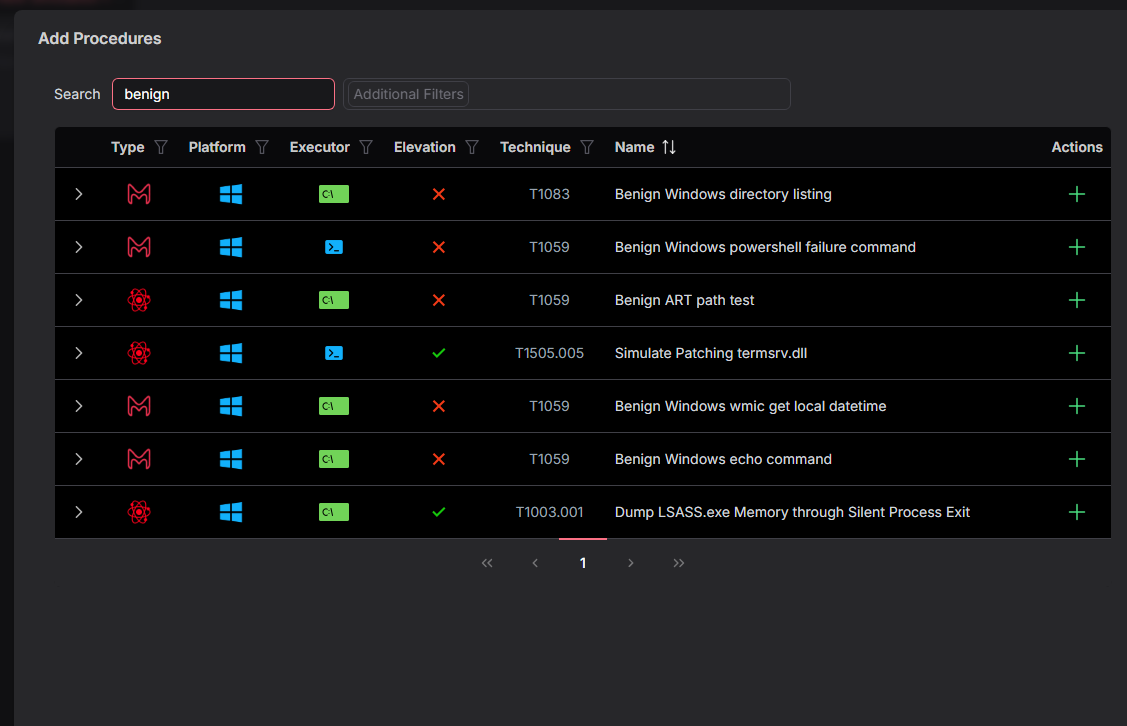
- Click the green
+button to addBenign Windows Directory Listing,Benign Windows wmic get local datetime, andBenign Windows echo command
- Click the green
- Once you've added some procedures you should see them in the sidebar. Their execution order can be modified by clicking and dragging.
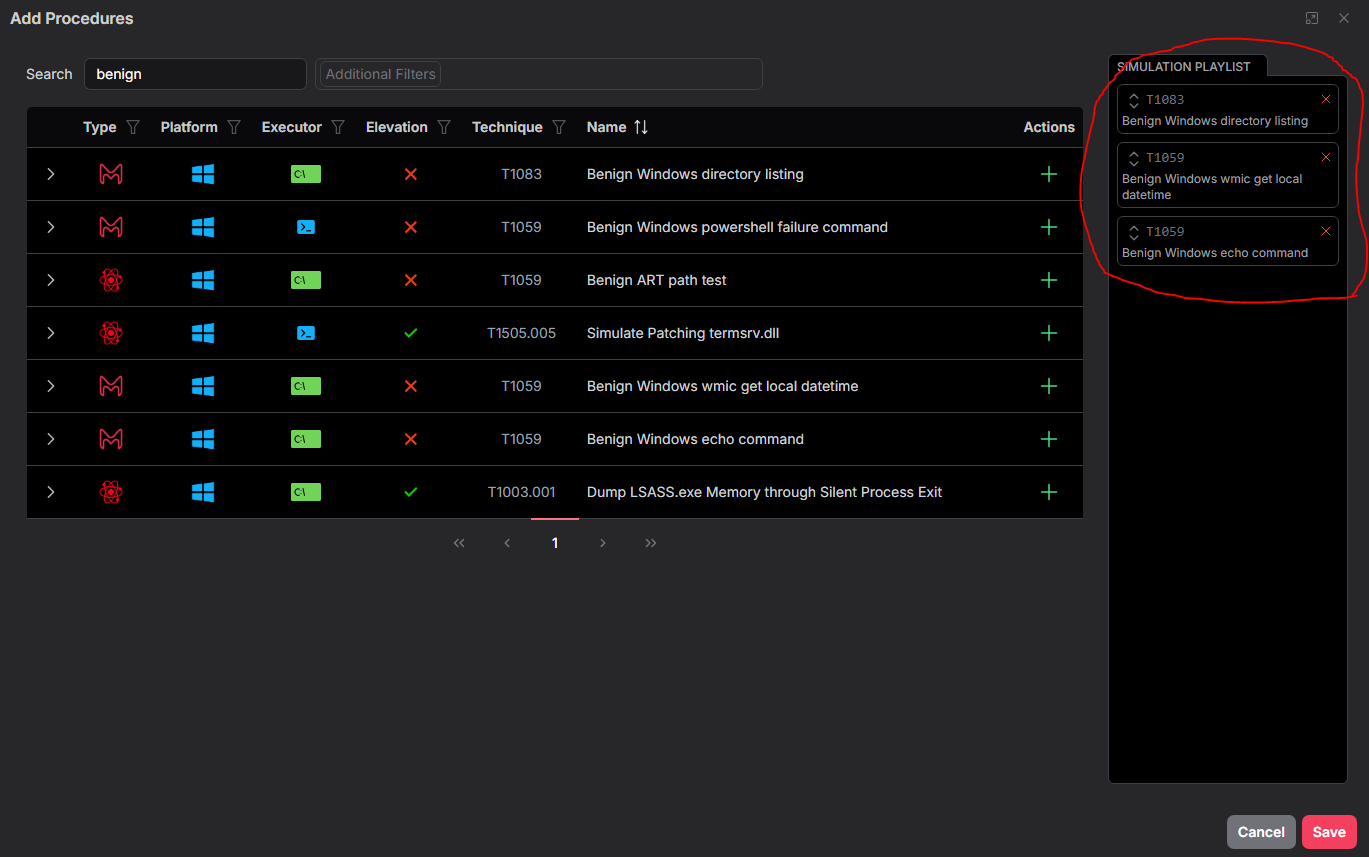
- Click save in the bottom right to finish adding Procedures.
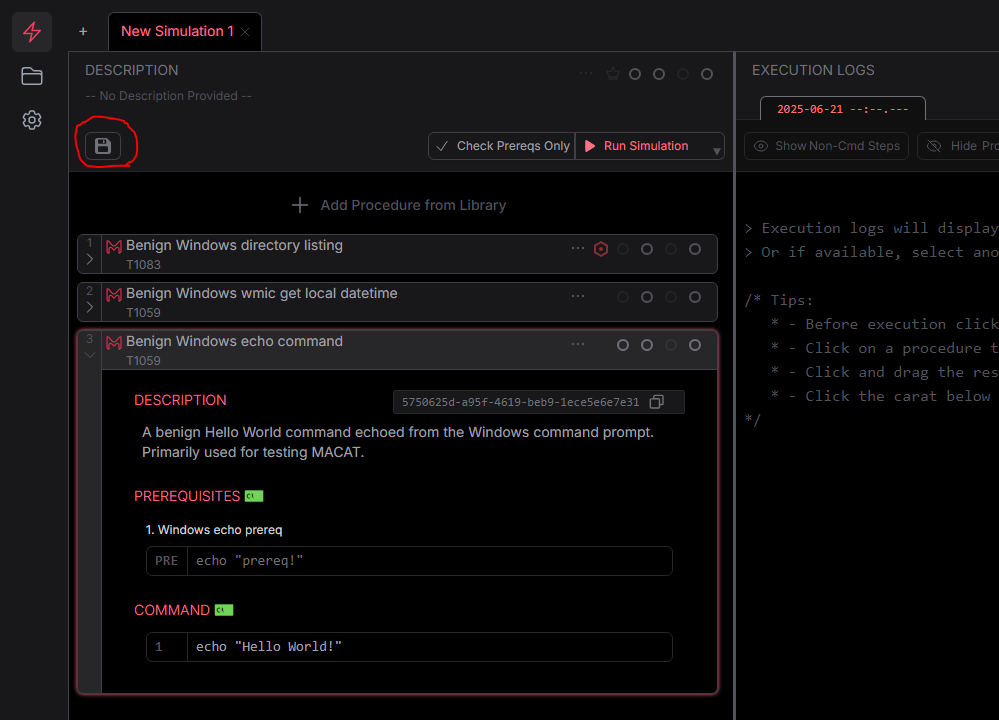
- You should now see your selected Procedures listed in your simulation procedure list. The arrow under the procedure order number can be clicked to view a specific Procedure's details.
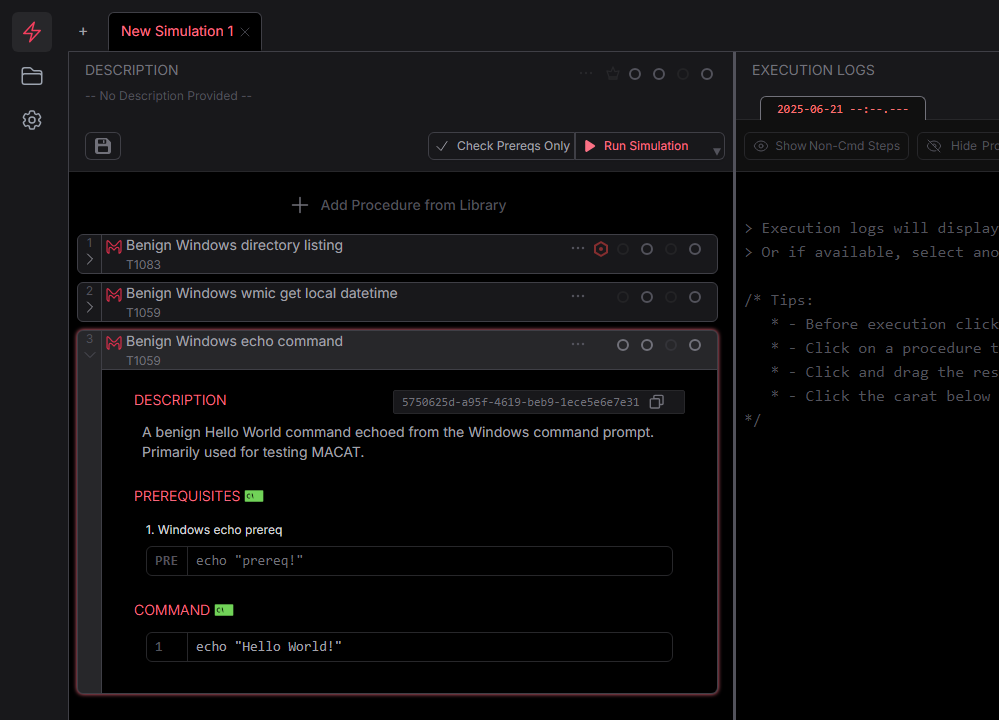
- Double-click the Simulation tab (likely named 'New Simulation 1') to edit its name.
Save a Simulation to a File
- If you'd like to save a simulation you've created, click the save icon in the top part of the Simulation pane. This will allow you to save a "MACATable" TOML file to your filesystem that you can share with colleagues or load later.